

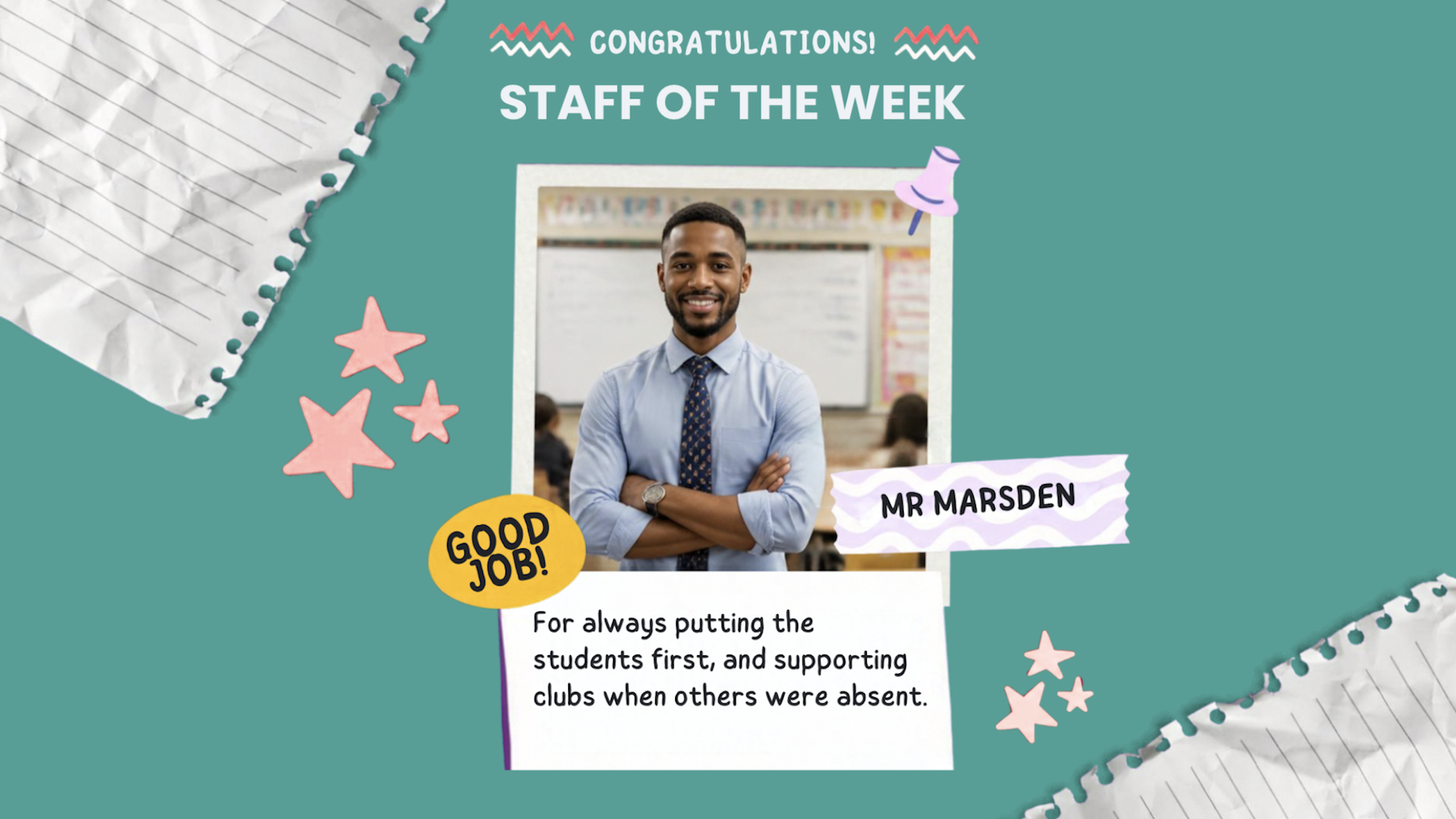
World teachers’ day is celebrated annually on October 5th to honour educators globally and acknowledge their vital contribution to society. It provides a meaningful opportunity for schools and Trust leaders to champion staff recognition, highlight teacher achievements, and demonstrate how modern digital tools can simplify everyday communication across the school community.
We want to show you how simple it is to create content to celebrate and make an impact with your staff. For this we’ll be using Canva, we’ll show you how to make eye-catching visuals that highlight teacher achievements, boost morale across the school community, and champion staff recognition.
Following the ABCs of positive signage, we’ll Always Be Celebrating!
So here’s how to create a vibrant thank you message for your staff, who go above and beyond.
How to create content with Canva (Education Pro)
Canva comes packed with hundreds of thousands of designs to choose from. The most important aspect is choosing one that matches your intended style, be it professional or more fun.
Choosing a design style
To start with something celebratory, the search was for ‘Student of the week’.
Dimensions
Content has to be the right size to make use of every inch of a widescreen display for maximum impact. For landscape this is 16:9 (1920 x 1080) and 9:16 (1080 x 1920) for portrait.
With Canva Pro, free for education, you have access to the resizing tool. Once you’ve created a Custom Size you can quickly select this in later projects.
Colour
Colour is a quick way to establish branding for the audience. The dropper tool can let you pick colours from areas on your computer screen, like the school website open on a web browser, to ensure perfect matching.
With colours changed, text updated and a new image added, the content is now your own!
Once complete, select Share and download. As TrilbyTV works with a variety of image formats, JPG, PDF or PNG are suitable options.
Movement
Animation can increase engagement by catching our attention, though too much can be a distraction and make it difficult to take information in. We all remember that Powerpoint with every transition possible!
For this content – the image, name and text have been set to pop, both on Enter and Exit. To save, select Share and choose mp4 video.
How to add content to TrilbyTV
From your Home feed, select the Add menu to choose either Slideshow for your image, or video for your animated version.
Drag the image or video file into the edit window to upload. Give the content a suitable title so that it can be easily found in feed, then Approve Content and save.
The content can now be assigned to a category or playlist, depending when or where it needs to play, as required.
Get in touch to find out how to quickly update your Canva content, without even needing to upload!
TrilbyTV Smart Content
We love to see our Smart Content used creatively and have seen some fantastic results. For this we’ll use a spot of reflection to celebrate the journey a member of staff has made, that led them to work within education.
From your Home feed, select the Add menu to choose Smart Content.
Once you’ve found a design you like, select Add to feed.
Fill in the title, date and description, and drag your images in.
Select Save and close, then assign your content to play where everyone can celebrate it!
We hope our guide has been useful and we look forward to seeing some of your World Teachers’ day content on your screens. If there are any particular celebrations or awareness days that you would like to have a step by step guide for, please let us know here.
Discover how effortless it is to keep your whole school community connected and up to date using TrilbyTV, by booking a demo with a member of our team, or starting a free trial today.